
Chuyện là mình sắp cài đặt lại máy tính, xóa sạch dữ liệu cũ kể cả ổ cứng D hoặc các ổ lưu trữ khác để làm mới lại bản thân cũng như máy tính một lần, đầu tiên mình sẽ dọn dẹp lại PC sau đó, cài lại Windows. Xóa dữ liệu… nhưng mình không nhớ key Windows là gì?
Và thậm chí ví dụ như mình cũng chả biết đang dùng windows gì nữa đi, cũng chả sao cả. Hãy thực hiên các bước dưới đây để lấy key bản quyền Windows siêu tiện nhé.
Xem thêm: cách bật tpm 2.0 trên main gigabyte
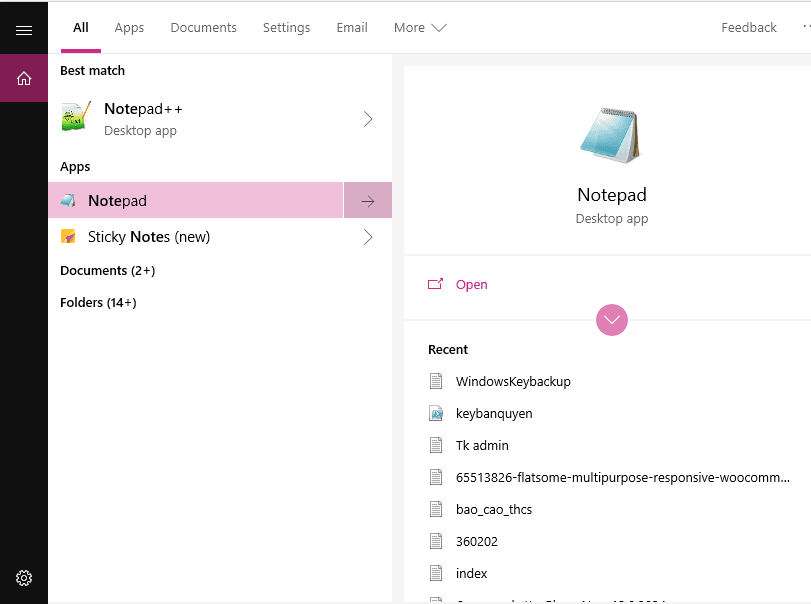
Bước 1: Mở notepad ( là trình soạn thảo code có sẵn trên Windows.
Bước 2: Nhập đoạn code sau vào trình soạn thảo của Notepad
#Main function
Function GetWin8Key
{
$Hklm = 2147483650
$Target = $env:COMPUTERNAME
$regPath = "Software\Microsoft\Windows NT\CurrentVersion"
$DigitalID = "DigitalProductId"
$wmi = [WMIClass]"\\$Target\root\default:stdRegProv"
#Get registry value
$Object = $wmi.GetBinaryValue($hklm,$regPath,$DigitalID)
[Array]$DigitalIDvalue = $Object.uValue
#If get successed
If($DigitalIDvalue)
{
#Get producnt name and product ID
$ProductName = (Get-itemproperty -Path "HKLM:Software\Microsoft\Windows NT\CurrentVersion" -Name "ProductName").ProductName
$ProductID = (Get-itemproperty -Path "HKLM:Software\Microsoft\Windows NT\CurrentVersion" -Name "ProductId").ProductId
#Convert binary value to serial number
$Result = ConvertTokey $DigitalIDvalue
$OSInfo = (Get-WmiObject "Win32_OperatingSystem" | select Caption).Caption
If($OSInfo -match "Microsoft Windows 8" -or $OSInfo -match "Microsoft Windows 10")
{
if($Result)
{[string]$value ="ProductName : $ProductName `r`n" `
+ "ProductID : $ProductID `r`n" `
+ "Installed Key: $Result"
$value
#Save Windows info to a file
$Choice = GetChoice
If( $Choice -eq 0 )
{
$txtpath = "C:\Users\"+$env:USERNAME+"\Desktop"
New-Item -Path $txtpath -Name "WindowsKeybackup.txt" -Value $value -ItemType File -Force | Out-Null
}
Elseif($Choice -eq 1)
{
Exit
}
}
Else
{
Write-Warning "Please run this script on Windows 8.x or Windows 10"
}
}
Else
{
Write-Warning "Please run this script on Windows 8."
}}
Else
{
Write-Warning "Failed to get Windows 8 product key,Some error occured."
}}
#Get user choice
Function GetChoice
{
$yes = New-Object System.Management.Automation.Host.ChoiceDescription "&Yes",""
$no = New-Object System.Management.Automation.Host.ChoiceDescription "&No",""
$choices = [System.Management.Automation.Host.ChoiceDescription[]]($yes,$no)
$caption = "Confirming"
$message = "Save product key to a file?"
$result = $Host.UI.PromptForChoice($caption,$message,$choices,0)
$result
}
#Convert binary to serial number
Function ConvertToKey($Key)
{
$Keyoffset = 52
$isWin8 = [int]($Key[66]/6) -band 1
$HF7 = 0xF7
$Key[66] = ($Key[66] -band $HF7) -bOr (($isWin8 -band 2) * 4)
$i = 24
[String]$Chars = "BCDFGHJKMPQRTVWXY2346789"
do
{
$Cur = 0
$X = 14
Do
{
$Cur = $Cur * 256
$Cur = $Key[$X + $Keyoffset] + $Cur
$Key[$X + $Keyoffset] = [math]::Floor([double]($Cur/24))
$Cur = $Cur % 24
$X = $X - 1
}while($X -ge 0)
$i = $i- 1
$KeyOutput = $Chars.SubString($Cur,1) + $KeyOutput
$last = $Cur
}while($i -ge 0)$Keypart1 = $KeyOutput.SubString(1,$last)
$Keypart2 = $KeyOutput.Substring(1,$KeyOutput.length-1)
if($last -eq 0 )
{
$KeyOutput = "N" + $Keypart2
}
else
{
$KeyOutput = $Keypart2.Insert($Keypart2.IndexOf($Keypart1)+$Keypart1.length,"N")
}
$a = $KeyOutput.Substring(0,5)
$b = $KeyOutput.substring(5,5)
$c = $KeyOutput.substring(10,5)
$d = $KeyOutput.substring(15,5)
$e = $KeyOutput.substring(20,5)
$keyproduct = $a + "-" + $b + "-"+ $c + "-"+ $d + "-"+ $e
$keyproduct}
GetWin8Key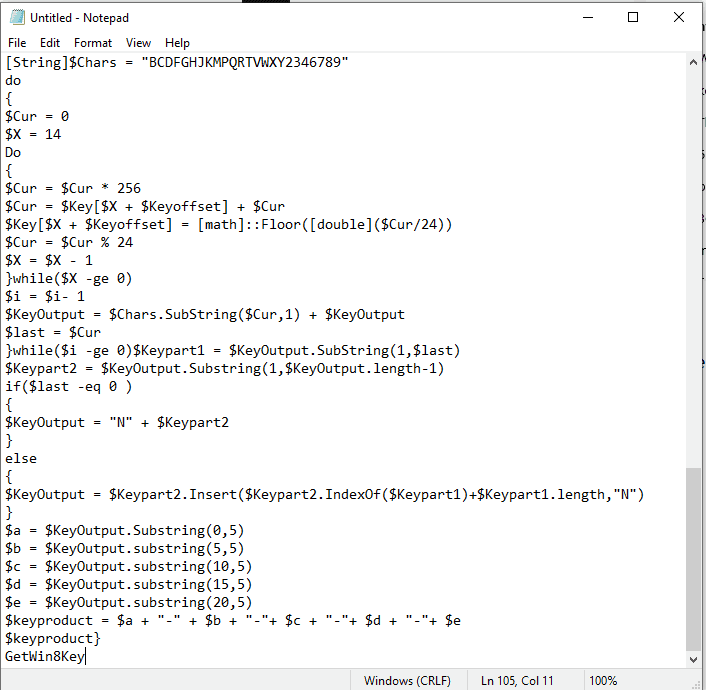
Hoặc nếu không muốn làm, bạn có thể sử dụng sẵn file này mình đã Upload lên tải về và chạy thôi nhé. Link Download
Bước 3: Lưu lại file dưới tên là keybanquyen.ps1 để sử dụng.
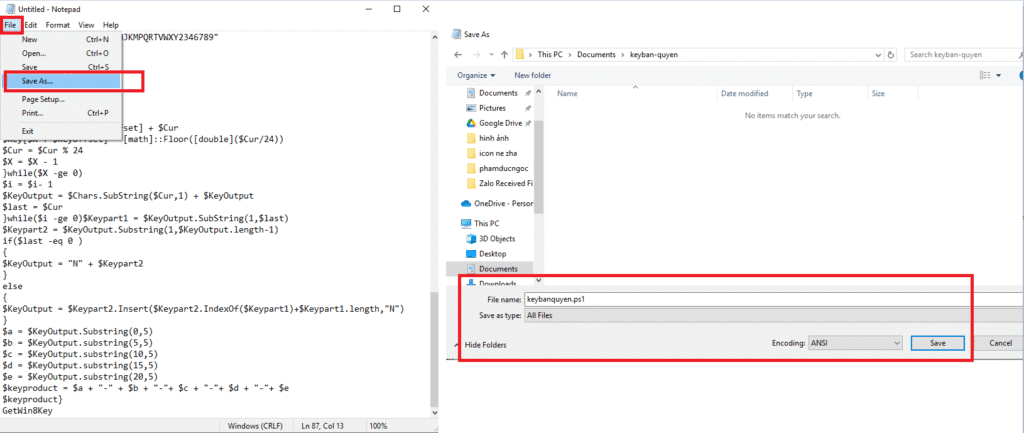
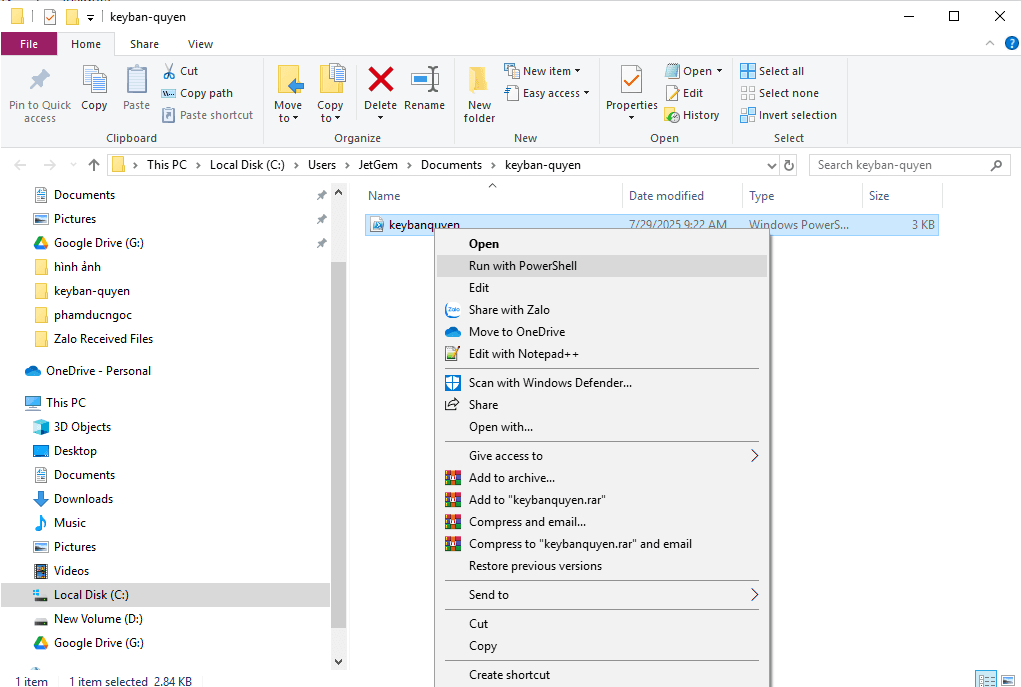
Bước 4: Vào vị trí lưu file trước đó, click chuột phải vào file chọn run with Powershell
Bước 5: Chọn y để tiếp tục
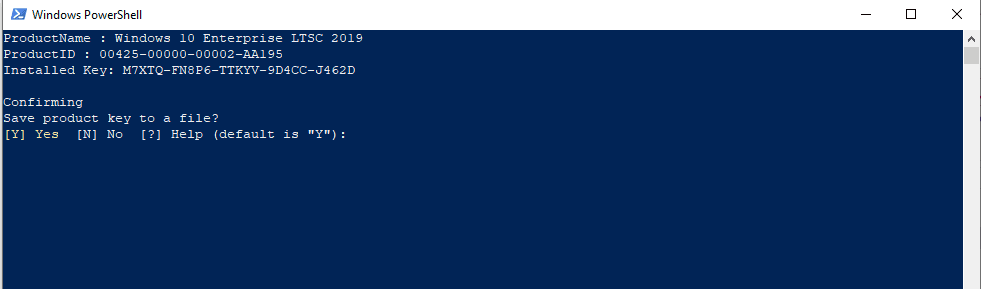
Bước 6: Ra ngoài màn hình Desktop để nhận key

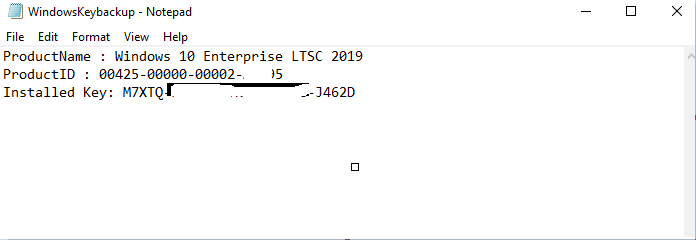
Hệ thống sẽ tự động tạo cho bạn một file mới ngoài màn hình Desktop là
- ProductName : Windows 10 Enterprise LTSC 2019
- ProductID : 00425-00000-00002-*****
- Installed Key: M7XTQ-*****-*****-9D4CC-J462D
Thì cái Installed Key chính là key windows, bạn lưu file này lên Telegram Web lưu trữ hoặc Zalo Cloud ý, rồi sử dụng sau này khi cài lại máy tính mới

Có thể bạn quan tâm:
Đây là Thinkpad Trackpoint II bàn phím tôi đã dùng 2 năm để gõ mỗi ngày
Mình là người thường xuyên sử dụng máy tính và hai [...]
Đầu thu truyền hình mặt đất DVB – T2 LTP Việt Nam thu được 60 kênh nét luôn
Ngày xửa ngày xưa, khi còn bé thì mình vẫn còn [...]
Review Máy rửa chén bát ELECTROLUX ESF6010BW cỡ nhỏ,rửa 8 bộ
Mình có một lời thú nhận: Mình không biết nấu cơm, [...]
Dự Báo Nhiệt Độ Tại Hải Phòng
Đầu tiên, khi phát triển NGOC Technologies thì mình chỉ đơn [...]
Làm sao để biết công suất thực của đèn năng lượng mặt trời khi biết Lumen
Trước này, khi mua nhà mới hoặc các dự án bất [...]
Battlefield 6 Khiến Activision ‘Run Sợ’, Black Ops 6 Mở Cửa Miễn Phí Cả Tuần
Cảm giác như năm 2016 đang quay trở lại, với hai [...]